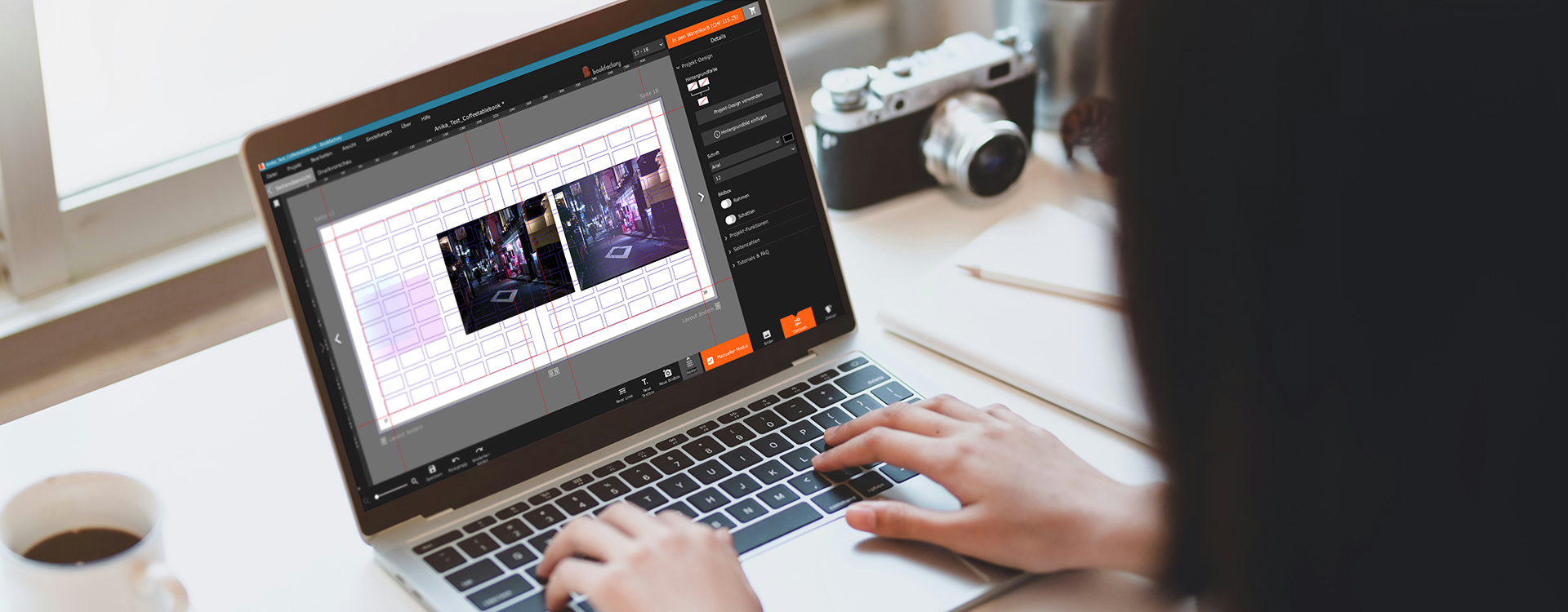
During my two years as Product Owner of the Bookfactory design software, I’ve had plenty of opportunities to discover its many different features, tips and tricks. Along the way, I’ve picked up a few techniques that I particularly like to use when designing, and I’d like to share them with you today.
In this article, I’ll show you some of my personal favourites:
- Using image boxes as colour accents or gradients
- Image editing and creating your own image effects
- Project Design
- Saved styles
Using image boxes as colour accents or gradients
I like to use image boxes not only for photos, but also as design elements. For example, to add a colour gradient over an image or subtly highlight certain areas.
To do this, I give the image boxes a background colour that I pick directly from the photo using the Color Picker. I then add a gradient to the two image boxes, from the left and right respectively, and set a different opacity for each one.
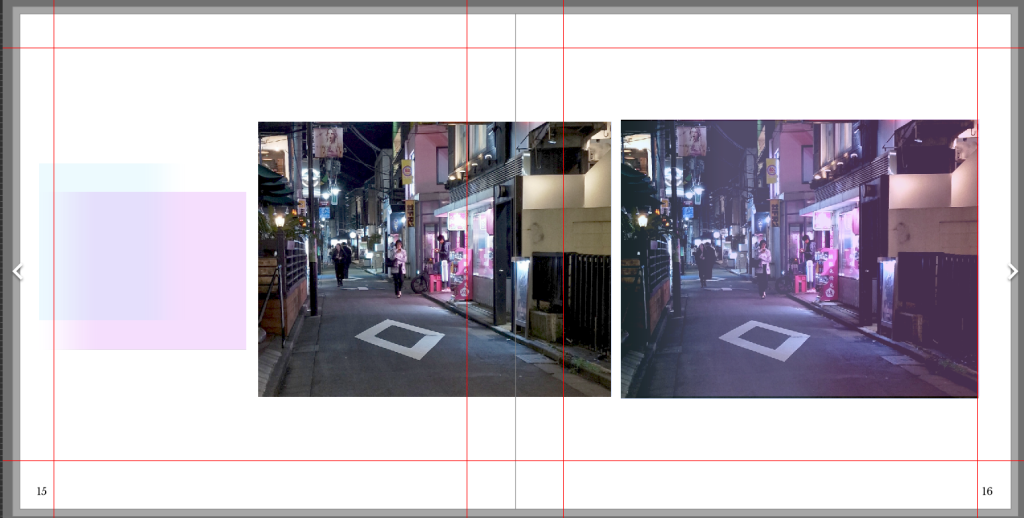
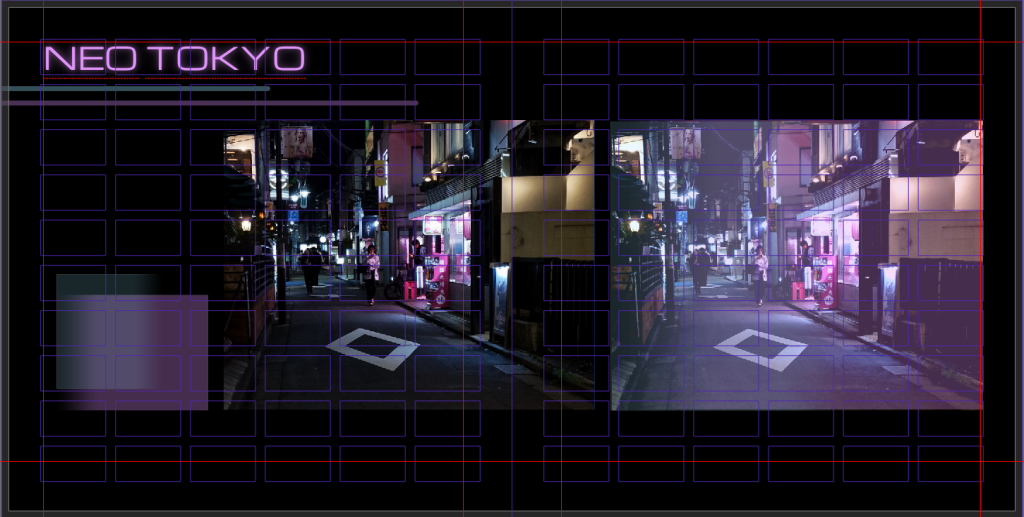
Combined with a matching background colour, font, text shadow and a few lines, you can quickly create an individual and creative layout.
Image editing and creating your own image effects
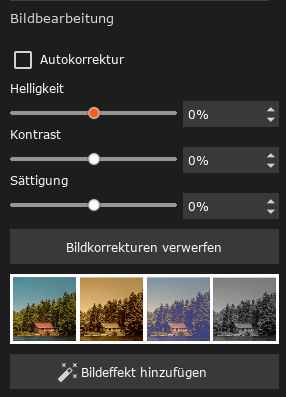
Under “Image editing”, you’ll find the most important editing options directly in our design software. This is particularly useful if you don’t want to edit your photos beforehand in an external image editing program.
You also have a range of image effects to choose from. You can even create and save your own effects.
If you prefer working with your own image editing software, you can open a photo directly from the Bookfactory design software via “Edit in”. As soon as you save your changes in the external program, they are automatically applied to your project as well.
A variety of standard effects are available. You can use them as they are, use one as a starting point for your own effect, or create a completely new effect from scratch.
It’s worth experimenting a little to see which look works best for your project and your images.
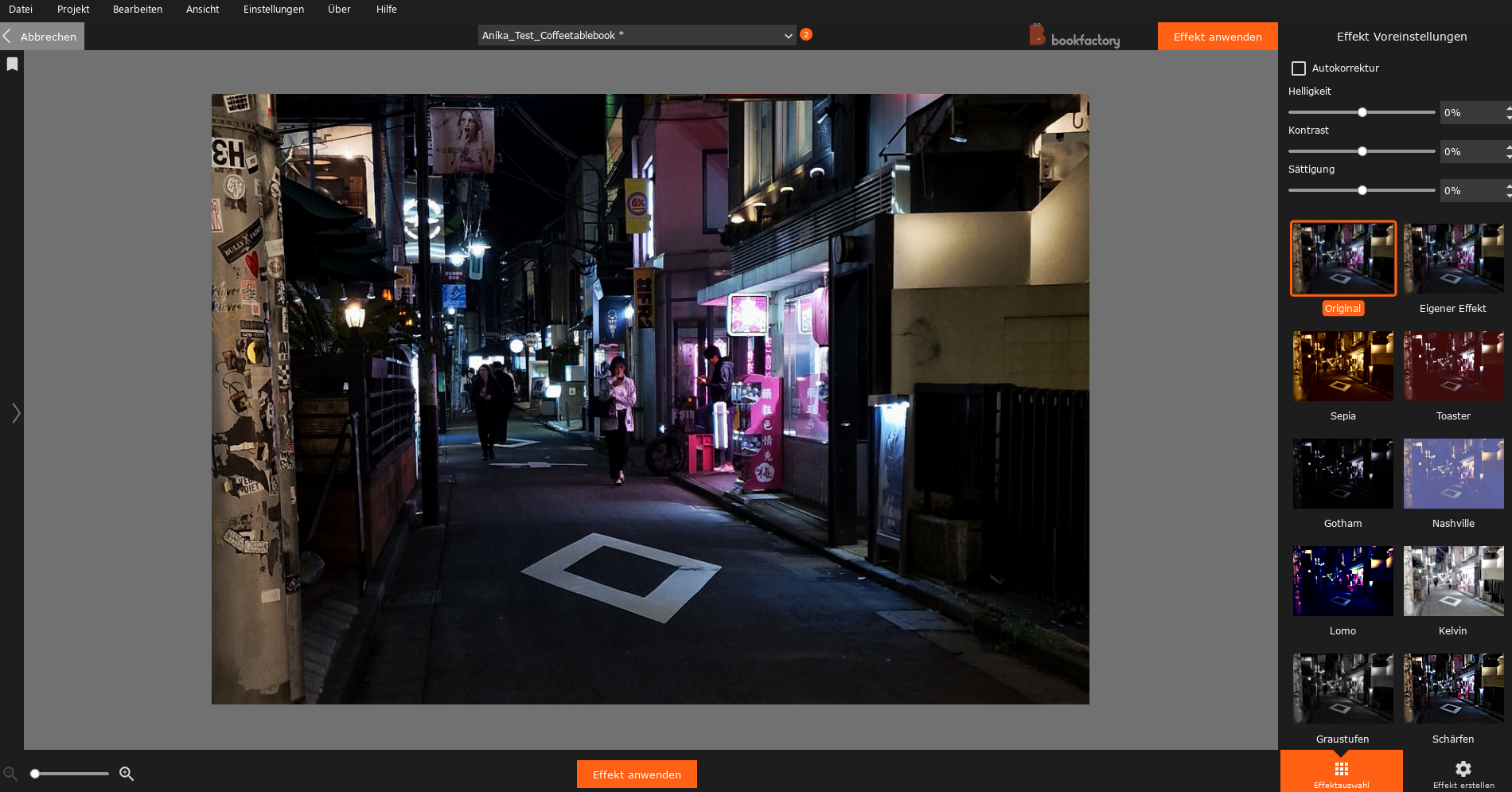
Tip: If you use your own effects or image edits, we recommend switching off automatic image optimisation for the relevant photo.
Project Design
Sometimes you don’t want to adjust every single image box or text box individually. That’s exactly what “Project Design” is for.
Here, you can define things such as background colours, the font for the entire project, as well as frames and shadows for your image boxes. New pages or boxes will then automatically adopt these settings.
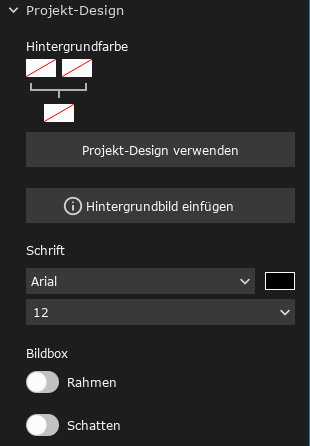
You can also apply the Project Design retrospectively to an existing project. Simply select the pages you want and click “Apply Project Design”.
Of course, you can still customise individual pages or several pages separately. Project Design will keep these adjustments until you select “Apply Project Design” again for the relevant pages.
This allows you to create a consistent overall look while still deliberately designing individual pages differently.
Saved styles
If you often work with similar settings, it’s worth saving your favourite styles. This means you don’t have to set up your preferred grid, colours or effects again for every new project. You can save, among other things:
- Grids
- Fonts
- Effects
- Colours
- Layouts
Here I’ll show you where you can save the different settings and access them again later.
Grids and text
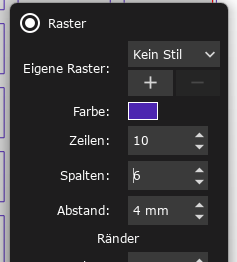
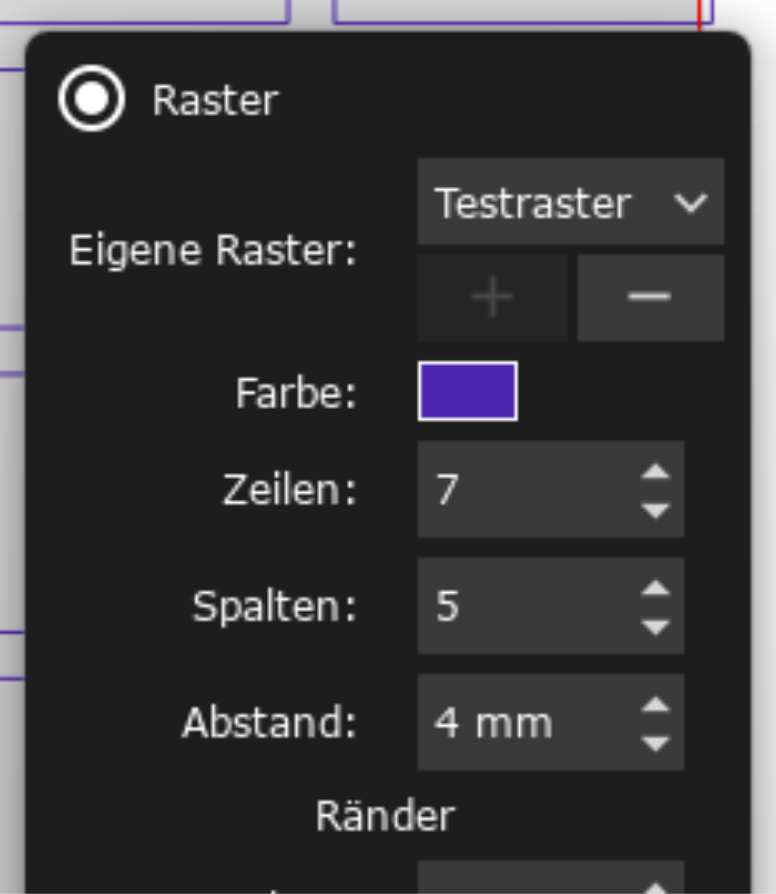
As soon as you change something in the grid or a text style, a plus symbol appears. You can use it to save your setting and reuse it at any time. The minus symbol lets you remove a saved style again.
Colours
You can also save colours that you use frequently.
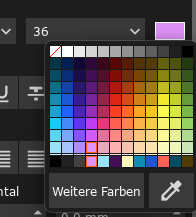
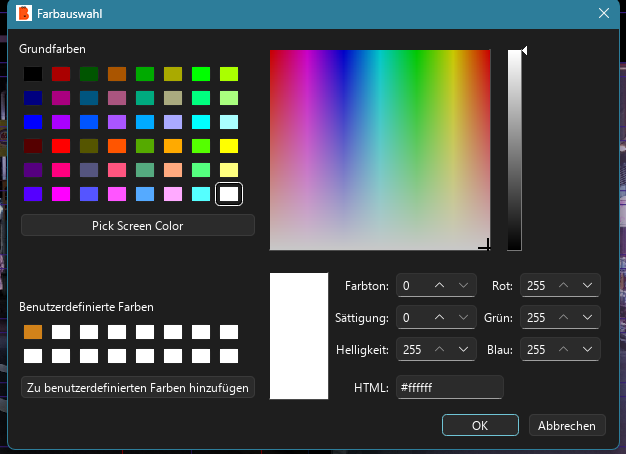
To do this, click on the colour field and open the colour selection under “More colours”. There, you can add your chosen colour to your custom colours and reuse it in other projects later on.
Effects
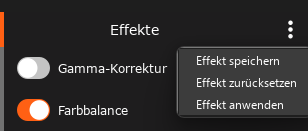
As described above, you can also save your own image effects. Open the Effects window, click on the three dots in the top right-hand corner and select “Save effect”.
Layouts
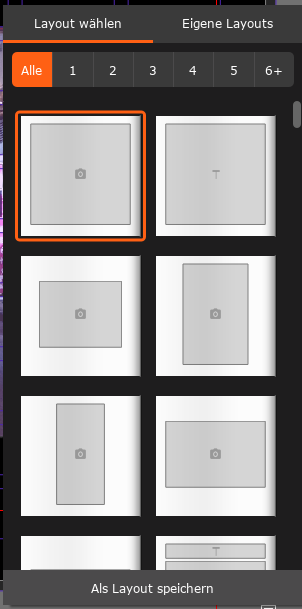
Created a layout you particularly like? You can save that too and reuse it later.
You can choose whether to save the layout for a single left or right page, or for a complete double-page spread.
Just give it a try
Many of the possibilities in our design software are best discovered simply by trying them out. With colours, gradients, effects and saved layouts, you can develop your own style in just a few steps while also making it easier to design your future projects.
I hope one or two of my favourite tricks find their way into your next photo book too. Have fun designing!
PS: You can also download one of our Bookfactory templates and save your favourite designs from these templates so you can reuse them later.