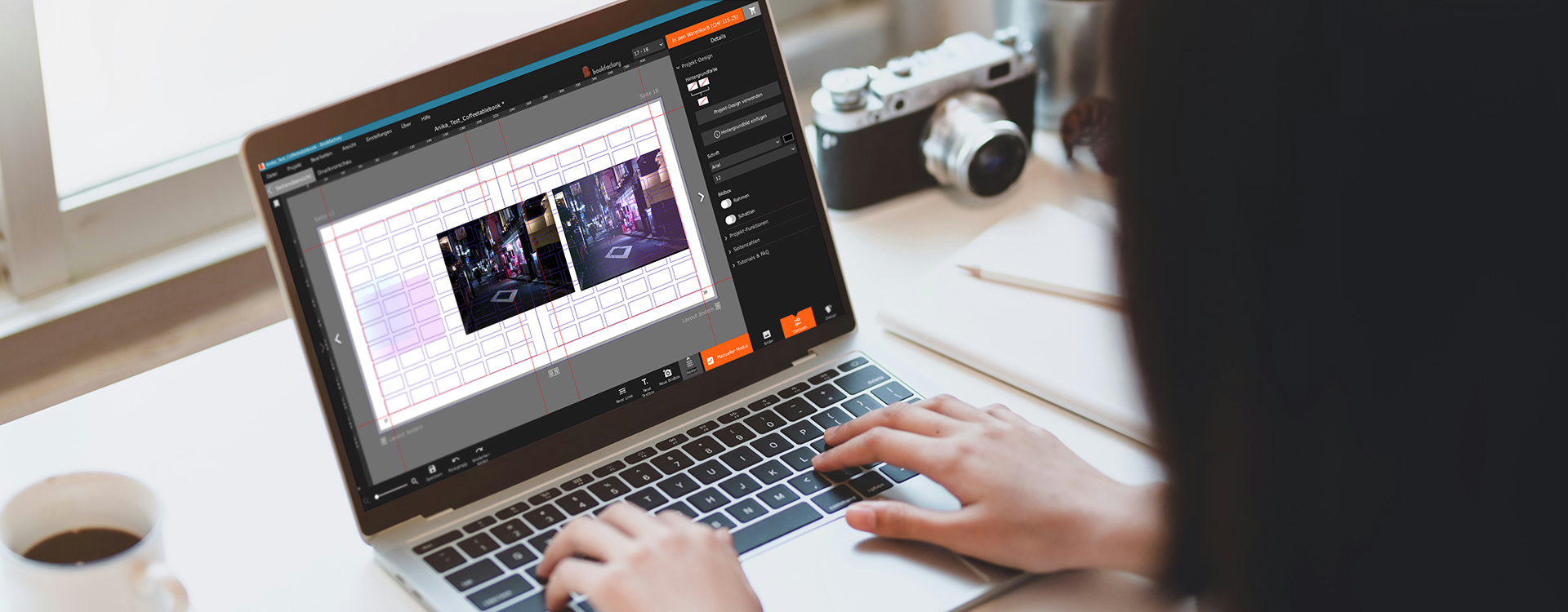
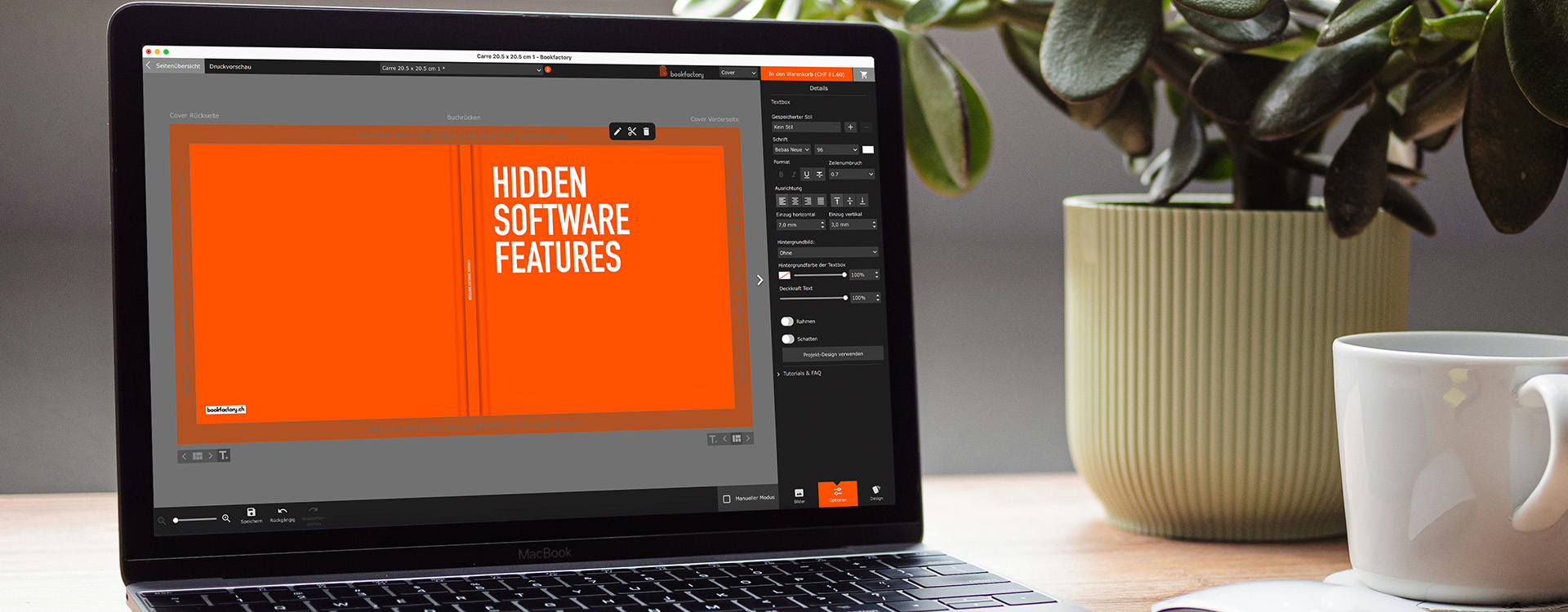
The Bookfactory software is as simple or as versatile as your needs. That’s why we’ve included some helpful features that even some “power users” may not be familiar with yet.
Listed below are the following features, along with brief instructions and screenshots:
- Guides
- Automatic zoom for text boxes (ideal for book spines)
- Performance support
- Set and delete saved styles
- Apply style to other images
- Disable image optimization for individual images
- Change product format and options
Automatic zoom for text boxes (ideal for book spines)
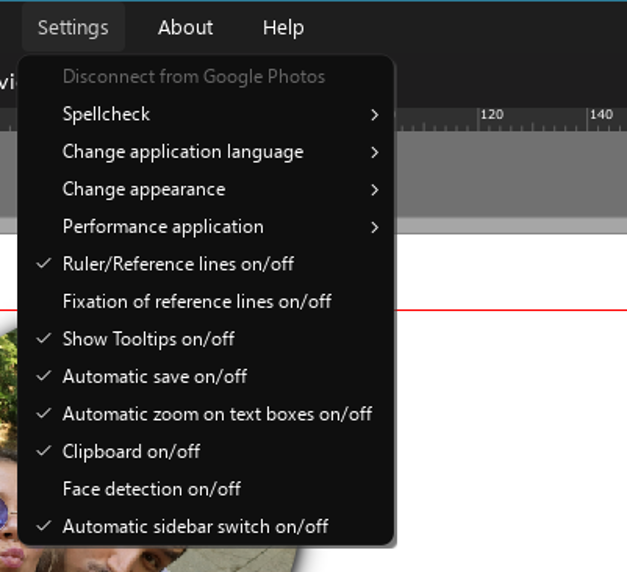
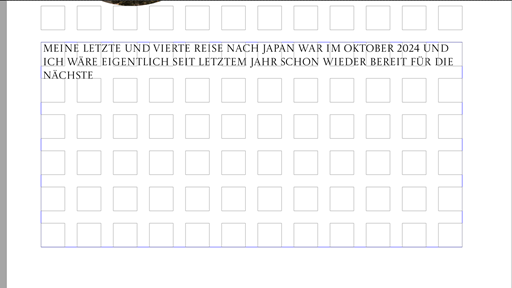
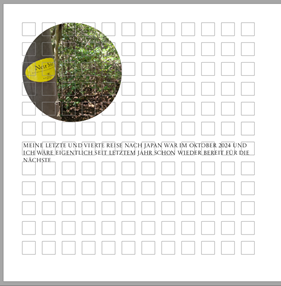
Under “Settings,” you’ll find the option “Automatic zoom on text boxes on/off”. This option automatically enlarges each text box when you double-click inside it. This gives you a better view of what’s important!
Comparison with zoom (left) and without zoom (right)
Guidelines
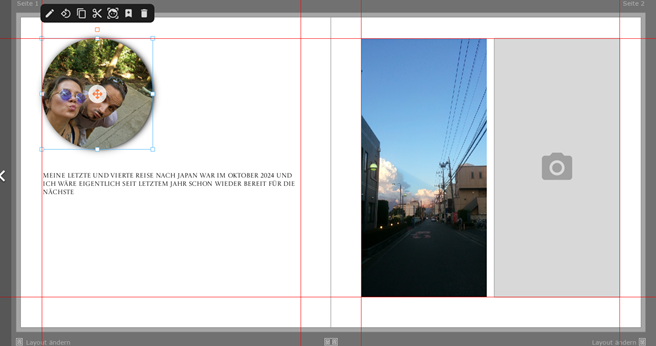
Just like in standard design programs, guides can also help you with layout in the Bookfactory design software.
- Under “Settings,” you’ll find the option to enable guides
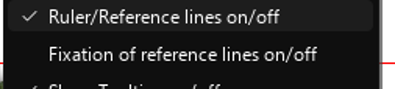
2. You can simply drag guides from the ruler onto the page using your mouse.
3. Once you’re satisfied with your guides, you can lock them in the settings. This prevents them from being moved accidentally.
Performance Settings
Also under “Settings,” you can go to “Performance Settings” to configure the Bookfactory design software to use less of your computer’s memory. This is especially helpful for large projects with many photos, in case the software starts to run a bit slower.

Save, apply, and delete styles
If you have a favorite style for your projects, you can save it and apply it again and again, even in new projects.
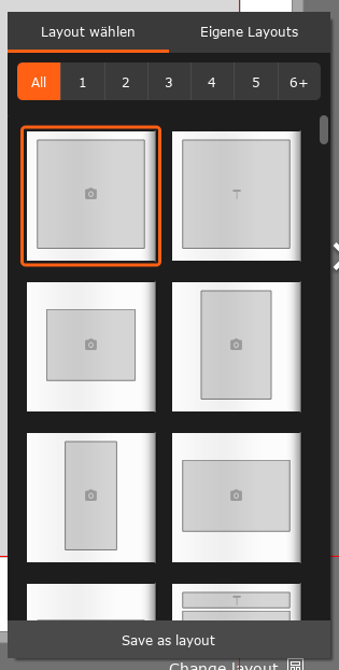
Save layout:
Under “Change layout,” you’ll find the “Save as layout” option at the very bottom
You can also find your own layouts under “Change layout” at the top, under “My layouts”
Text style:
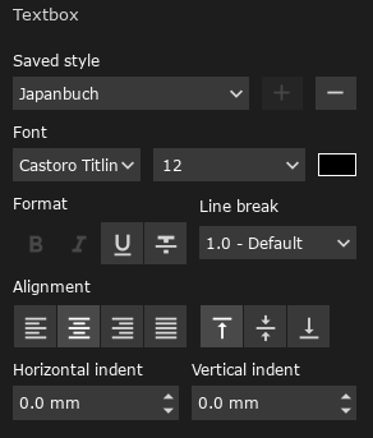
You can also save your text style. To do this, format your text and then click the plus sign. Hidden here because the only saved style is already chosen). By clicking on the minus icon, the style will be deleted again.
Apply style to other images / Project Design
To set a style for all your photos, I recommend the “Design” project. Here, you can set frames and shadows for all existing and new photos, among other things. However, we’ve written a separate blog post about this. If you’ve set a style later on and would like to apply it directly to all your images, you’ll need to
- Copy the style (right click on the picture with your mouse)
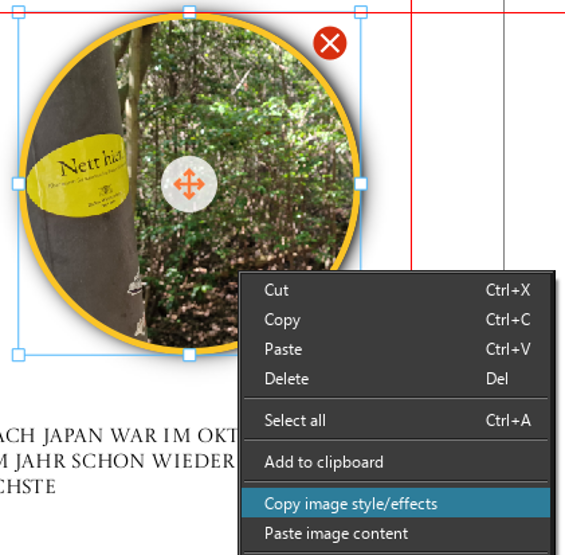
2. Apply styles, effects, or both to selected image boxes, an entire page, or the entire project

Turn off image optimization for individual images
Bookfactory’s image optimization is so smart that it only edits images as little or as much as necessary. However, when using automatic image optimization, we recommend excluding certain photos from the process.
The option appears once you’ve selected a photo. In the right-hand sidebar under “Image Box,” you’ll see the Image Optimization option


Orange means it’s active. Click on the text or button to switch it.
However, this only works if you’ve selected the “Automatic Image Optimization” option in the product settings.
Change product and options
In the Bookfactory design software, you can switch between project types at any time, as long as you stay within the same category. This means you can, for example, switch from a Flatbook Carré to a Photographic Jumbo whenever you want. Your text and photos will be transferred. Since your layout may no longer match the new format perfectly depending on the format, it is recommended that you review your project carefully.
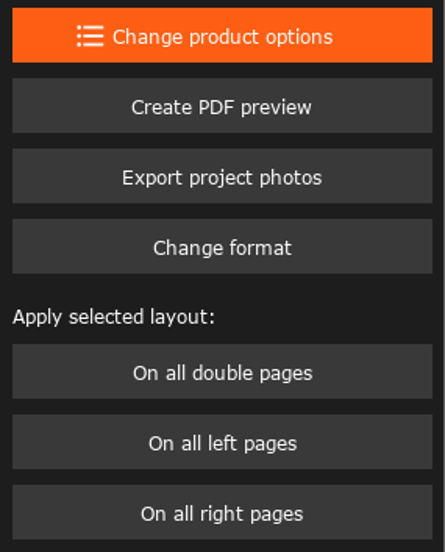
You can find the “Change Format” feature in the right-hand sidebar under “Options” and “Project Features”
If you only want to change a few settings for your project—such as paper type, size, or automatic image optimization—simply use the “Change Product Options” feature, which is also located in the sidebar under Project Features.
If you think we’ve missed something or if you have any requests or suggestions, just contact us at service@bookfactory.ch
We hope you enjoy creating and exploring all the possibilities!